Staff
Manage field staff, roles, and WhatsApp skills.
The Staff directory is where you manage field operators and their WhatsApp capabilities.
In Community Wolf, "staff" really means phone numbers with skills. A staff entry represents a WhatsApp phone assigned to a site. The phone stays at the site; different guards may use it across shifts.
What you can do
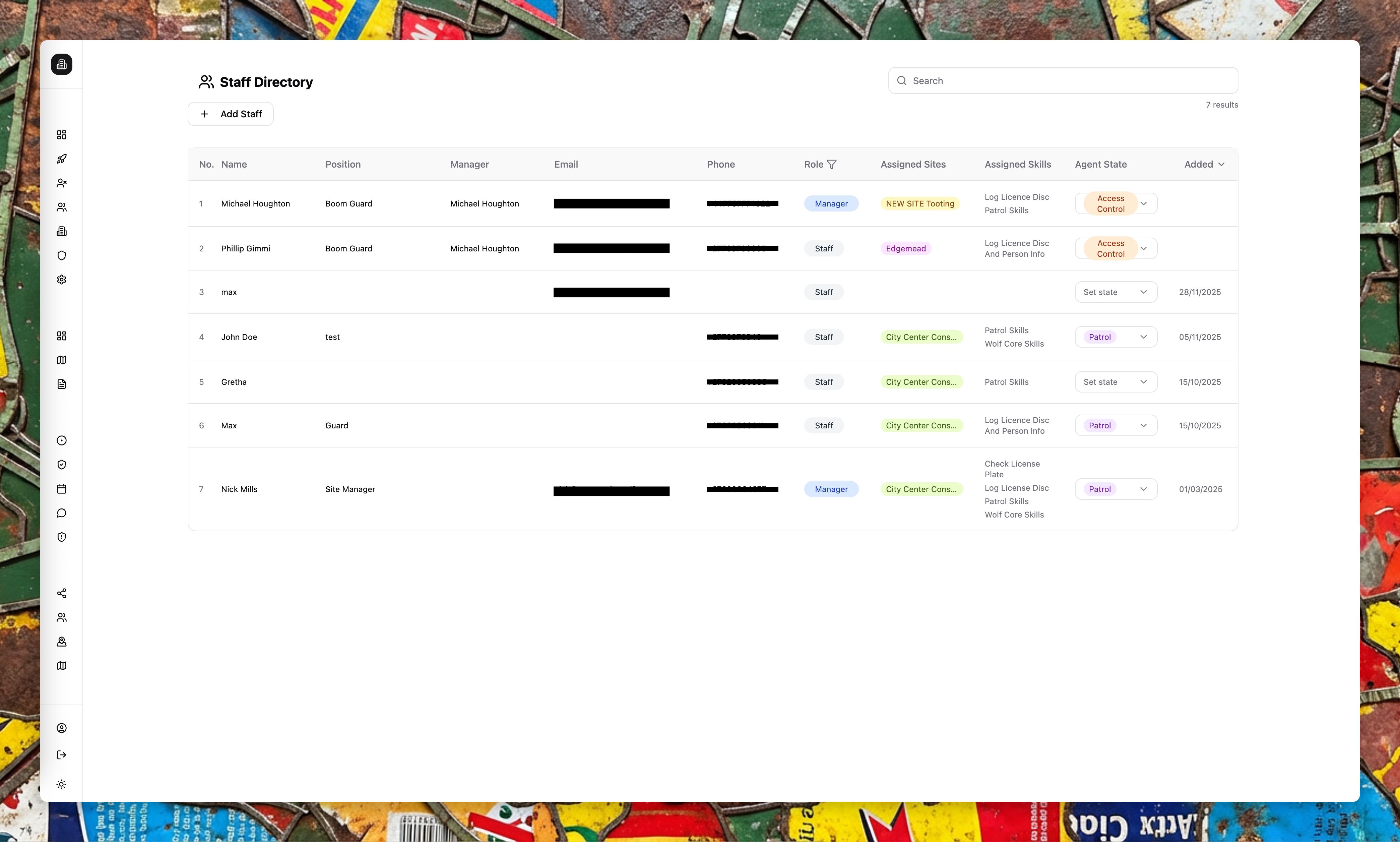
- Create and edit staff profiles
- Assign roles (Admin, Manager, Staff)
- Link staff to sites
- Assign WhatsApp skills
- Update agent state when a staff member needs to switch workflows
Key fields
- Name and role: Determines operational access and permissions.
- Phone: Used by WhatsApp agents. Use E.164 format (for example,
+27123456789). - Assigned sites: Limits access control and reporting context.
- Skills: Determines which WhatsApp workflows are available.
- Manager: The manager receives alerts when flagged events occur (for example, a vehicle flagged during access control).
How skills turn phones into tools
When you assign a skill to a staff entry, that phone gains new capabilities. The guard sees WhatsApp flows (buttons, image uploads, location requests) that guide them through tasks like:
- Scanning a licence disc at the gate
- Running a patrol route with checkpoint verification
- Checking in at the start of a shift
No app downloads, no new hardware. The phone they already have becomes an operational tool.
Agent state
Admins can switch a staff member's agent state to force a specific workflow (for example, Patrol or Access Control). This is useful when a staff member is stuck or needs to move to a new task.
Hierarchy and alerting
Each staff entry can have a manager assigned. When certain events occur (for example, a flagged vehicle is scanned), the manager receives an automatic WhatsApp alert with the details. This default hierarchy ensures that important events are escalated immediately.
Skills are assigned to staff, not platform users. See Skills for details.