Areas
Define geographic zones used for reports, patrols, and filtering.
Areas are geographic boundaries used to filter reports and organise operations. Think of them as catchment zones—they define where your organisation operates and what data you see.
Why areas matter
Everything in Community Wolf is scoped by location. When a community member submits a report, the system checks whether the report location falls inside any of your areas. If it does, you see it. If it does not, you do not.
This means:
- Live Map only shows reports inside your areas
- Reports list only includes incidents inside your areas
- Analytics only aggregates data from your areas
- Export Flows only pull data from your areas
If you miss configuring an area, you will miss the incidents that happen there.
Create an area
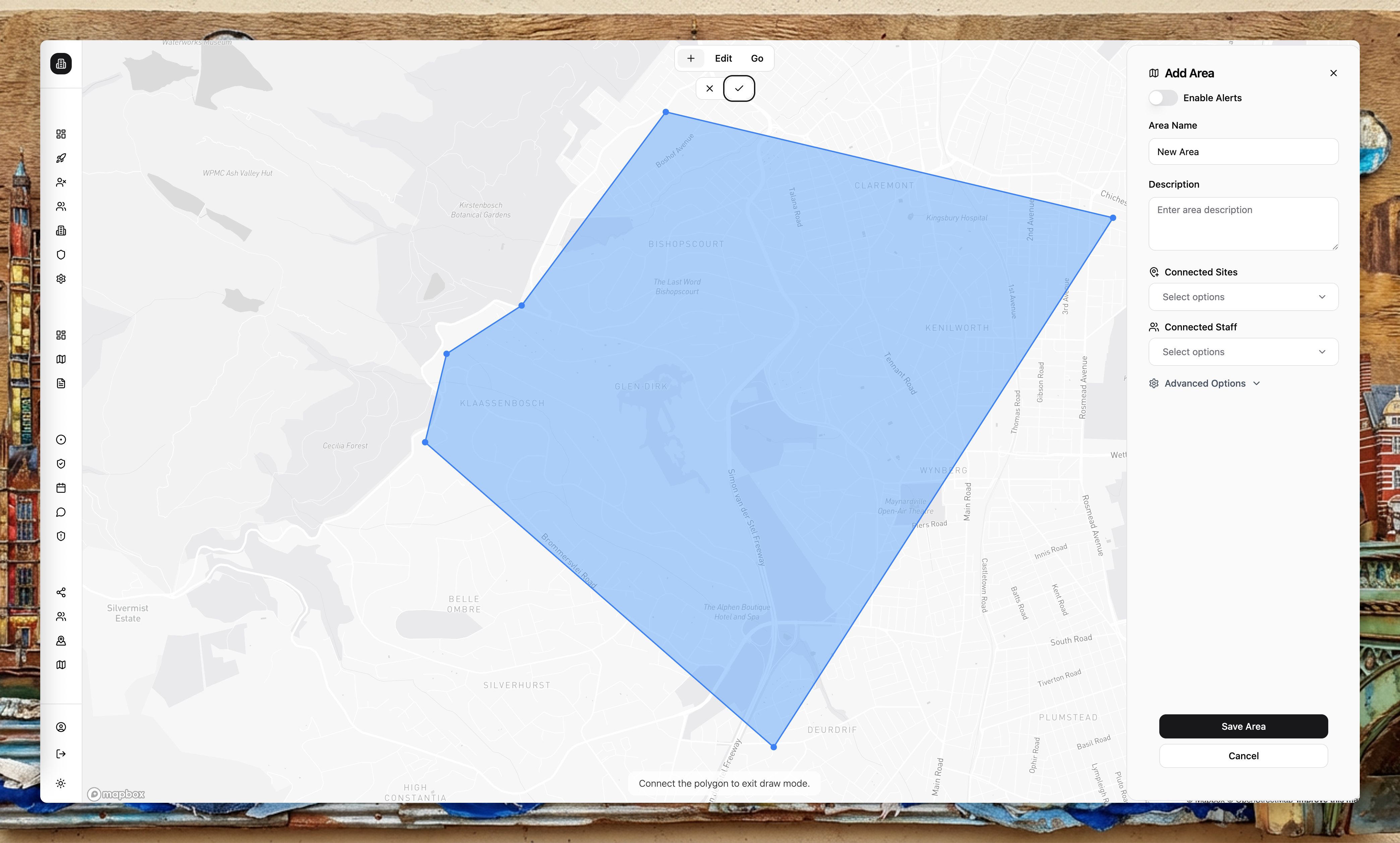
Draw the boundary
Use the map tools to draw a polygon around the area you want to cover. Be precise—the boundary determines what you see.
Name the area
Give the area a clear, recognisable name (for example, "Fishoek CBD", "Nordhook Residential", "Capri Cul-de-sacs").
Save and review
Save the area and confirm the boundary overlaps the correct locations.
Import GeoJSON
If you already have boundaries (for example, from a GIS system or municipal data), you can import GeoJSON polygons to speed up setup. This is useful for complex boundaries that would be tedious to draw by hand.
Keep area boundaries accurate. Reports are filtered by area polygons, so inaccurate boundaries can hide incidents or show irrelevant data.
Areas vs sites
- Areas are geographic boundaries used for filtering reports and scoping data.
- Sites are physical locations (buildings, estates, facilities) where staff operate.
Sites are linked to areas. When you create a site, you assign it to an area. This connection is how the platform knows which reports are relevant to which sites.